Put the mouse aside for a moment. Open an image gallery and try to reach a photograph, enlarge it, move to the next one and get back to the page using only the keyboard. It is a revealing little exercise. A collection can look beautifully simple while concealing a close button you cannot reach or a thumbnail that never becomes selectable. Making an image gallery accessible begins with finding those obstacles, then asking a second question: what does the collection communicate to someone who cannot see the photographs? Alt text, captions and usable controls each answer a different part of that question.
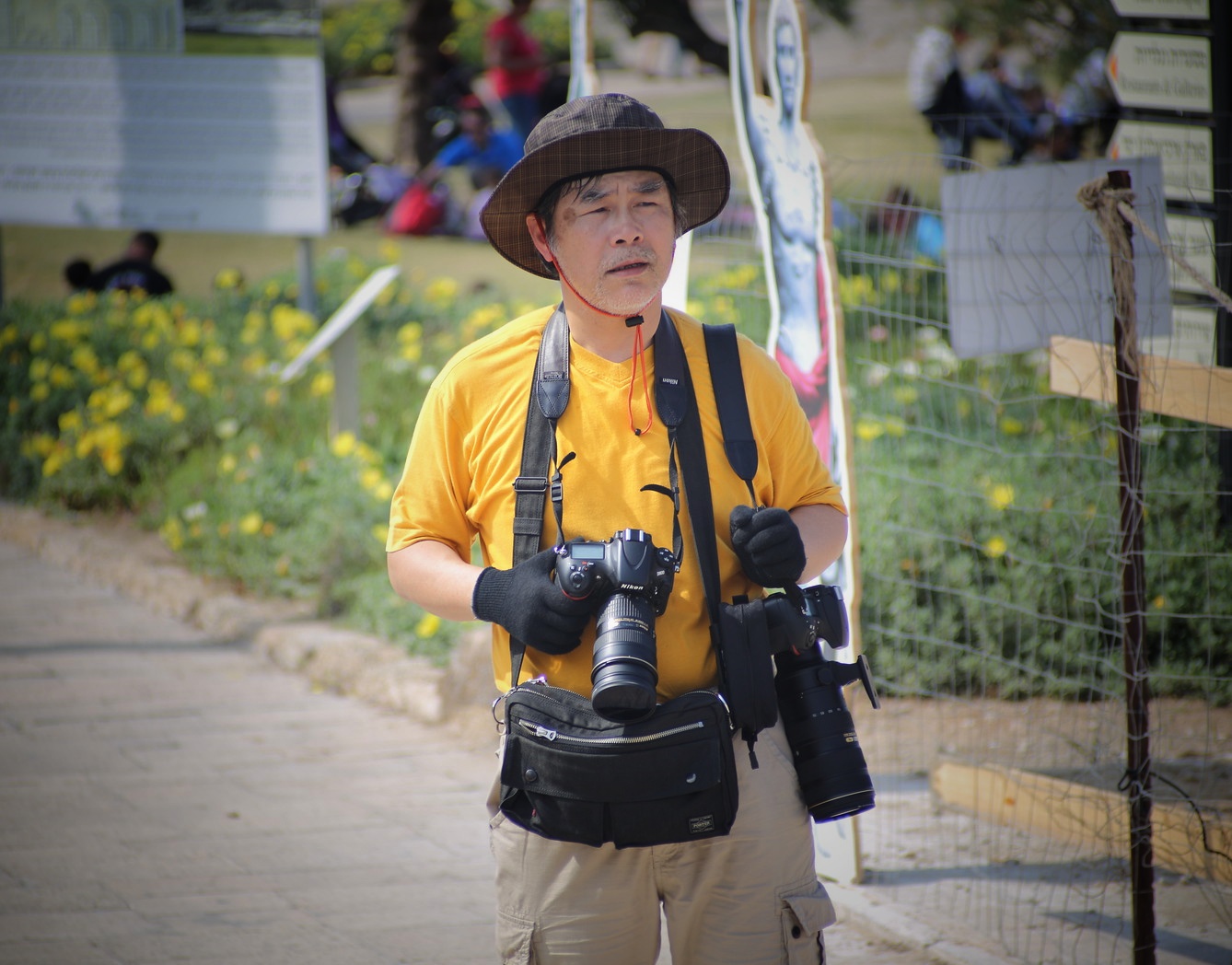
Our photographer in yellow provides a concrete example. He stands on a paved path wearing a brown checked hat with a red chin cord, a bright yellow shirt and beige cargo shorts. Dark straps descend from his shoulders. One gloved hand supports a camera with a long lens, while another camera hangs beside a black waist bag. A fence runs along the right, yellow flowers spread behind him, and blurred visitors occupy the background. His gaze points beyond the frame. I enjoy the colour echo between the shirt and flowers, but I also see a practical challenge for description: which of those details matters in the gallery where this image appears?
If the photograph belongs to a collection about photographers carrying equipment, a useful alternative text would be: “Photographer in a yellow shirt and brown hat carrying two cameras with long lenses beside a flower-lined path.” That communicates the central subject and setting. “IMG_2461-01” tells the reader nothing useful. “Image gallery photography camera photographer equipment gallery” is worse than an awkward description; it turns the space intended for an alternative into a pile of search terms. I would remove the pile and describe the picture.
Context can change the emphasis. In an article about colour relationships, “Yellow-shirted photographer standing in front of yellow flowers, with dark camera straps crossing his chest” could better communicate why the frame was chosen. There is no single perfect sentence detached from the picture’s purpose. W3C’s image guidance makes that distinction between informative images, decorative images and images that operate as controls. Pure decoration can use an empty alternative text attribute, while a functional image needs a text alternative that conveys its action. A photograph central to a gallery usually has information to communicate; it should not be dismissed as decoration simply because it is attractive.
The caption has another job. It is visible to everyone and can supply a verified location, name, date or context. For this picture, a caption might say: “Two cameras and an attentive glance beyond the frame: a photographer pauses beside a flower-lined path.” That is an editorial description rather than a claim about his identity or profession. If the place and occasion are established, those details can make the caption more useful. Alt text and captions can complement each other without repeating the same long inventory. Read them together and ask what information each contributes.
A complex photograph may deserve more description than a concise alternative can comfortably hold. In that case, place an extended description in readable text near the picture or provide a clearly named route to it. Our second paragraph offers that kind of fuller account here. The point is to make the relevant detail available, rather than force an entire essay into a single attribute. A gallery of documentary scenes, for example, may need more context than a collection of product views whose differences can be described briefly.
Now return to the keyboard test. Use Tab to move forward and Shift plus Tab to move back. Can you see which interactive element has focus? Can you reach each gallery control in an order that makes sense? Can you activate a thumbnail and the previous, next and close controls using the expected keyboard interaction? Write down the first place you get stuck. “Keyboard support” in a feature list is less useful than successfully completing the actual journey through your own page.
If an enlarged image opens as a modal dialog, focus should move inside it and remain within the dialog while it is open. Escape should close it, and closing should normally return focus to the control that opened it. Include an accessible, visible close control as well. W3C’s modal-dialog pattern describes these behaviours. Merely drawing a dark overlay does not create them. A common failure is allowing keyboard focus to wander into the page behind the enlarged picture, leaving someone operating controls they can no longer see.
Control names should describe actions. An icon can be visually compact while its accessible name says “Next image” or “Close image viewer.” A download control should explain what is being downloaded. Where several images have opening controls, make the destination or subject distinguishable. “Open larger view of photographer carrying two cameras” is more informative than a procession of anonymous buttons. The exact combination of image text, button text and accessible naming depends on the implementation, so check what assistive technology actually announces rather than assuming every label you supplied will be heard in the way you intended.
Captions and controls also need to remain readable. Tiny pale-grey lettering may look discreet beneath a photograph and become hard work on a phone. Text should have sufficient contrast against its background, and enlarged text should not disappear behind fixed-height boxes. Check the gallery with browser zoom and the text-size settings you expect people to use. The photograph can retain its visual priority without making the information underneath it an eyesight test.
An image gallery that depends on hovering creates another unnecessary barrier. Essential captions, credits and controls should be available to people using keyboards and touchscreens, too. Likewise, do not make a swipe the only way to reach the next picture. Give people a clearly operable alternative. If images advance automatically, provide a straightforward way to pause them; for a photographic collection, I would usually let visitors advance the sequence themselves. Looking carefully at a picture should not require keeping up with the page.
Test the words as well as the interface. Listen to several items with a screen reader, or arrange testing with someone who uses one, and check whether the subject, caption and available actions are understandable. An automatic check can flag some missing information, but it cannot reliably judge whether a description captures the reason you selected a photograph. “A man outdoors” may be technically present and editorially inadequate for this equipment-focused example. Accuracy and relevance still require looking, thinking and, where possible, feedback from the people using the result.
Keep the first improvement manageable. Choose one gallery, correct misleading or empty descriptions on informative images, make its controls reachable and named, and complete the open, navigate and close journey. Then check that captions remain attached to the right photographs when the layout changes. Our caption guide explores useful wording, while the guide to creating an image gallery considers the selection and structure behind the page. These practical checks are a starting point for improvement, rather than a substitute for a broader accessibility evaluation.
For the photographer in yellow, I want a visitor to encounter more than an unexplained rectangle or a filename read aloud. The subject, his equipment and the setting should be available in words. The controls should let someone explore at their own pace and return without losing their place. Those are concrete editorial and design tasks. A gallery becomes more welcoming through getting them right, one image and one interaction at a time.